


Retouch Remove Objects Editor
4.64.20K Reviews
App Specs
- Version
- 2.3.4.2
- Updated On
- License
- Free
- Downloads
- 10,000,000+
- Developer
- VIDEOSHOW Video Editor & Maker & AI Chat Generator
- Categories
- Photography
- Platform
- Android, iOS
Screenshots
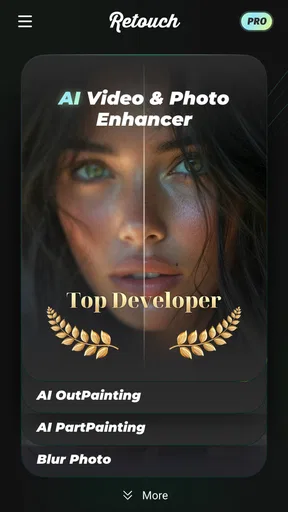
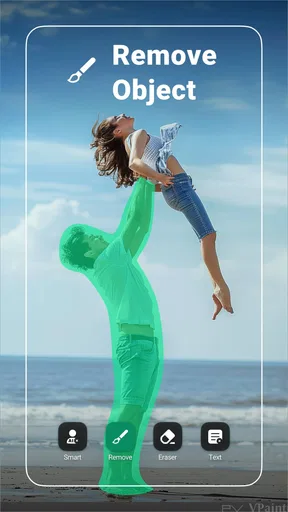
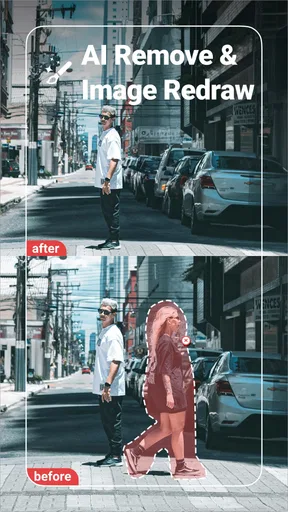
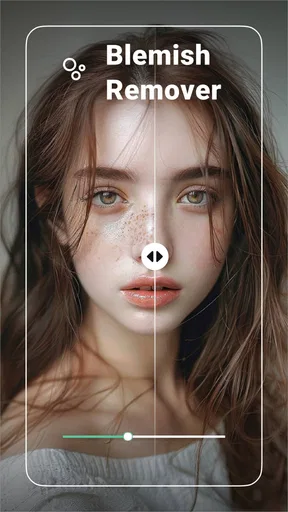
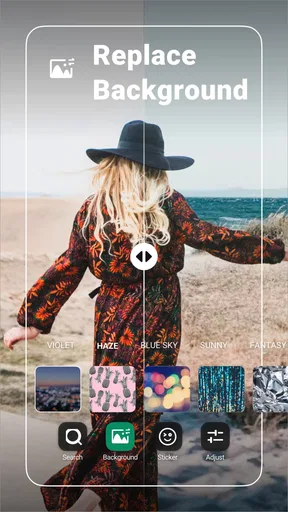
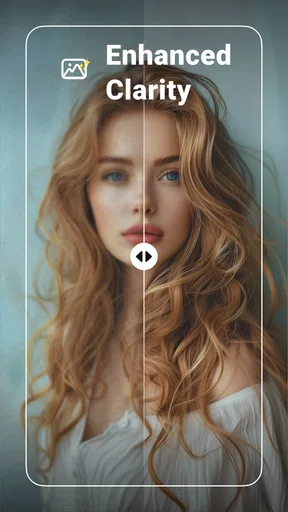
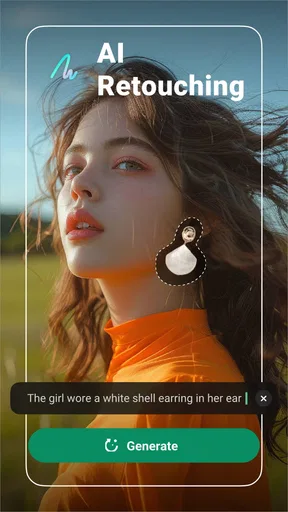
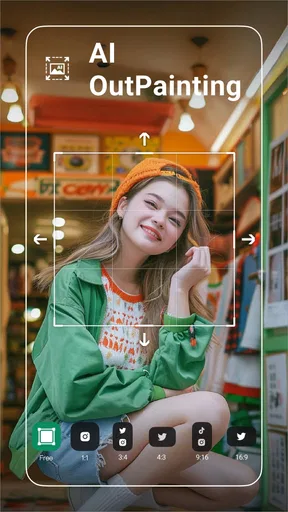
 Analysis by AppCompare
Some photo edits are tiny but make a big difference: a stranger crossing the background, a distracting mark, or a watermark that draws the eye away from the image. I like having a focused retouching tool for those moments rather than opening a full editing suite. Retouch Remove Objects Editor is a free photography app from VIDEOSHOW Video Editor & Maker & AI Chat Generator, built around cleaning up images and making quick touch-ups. Its 4.6 average from around 393,000 ratings and over 10 million installs suggest it has found a sizeable audience, though popularity alone cannot tell you whether a particular edit will look convincing.
A practical starting point for a quick edit
The app is aimed at people who want to work directly on a photo, not build a complicated composition from scratch. That makes it a natural fit for travel snapshots, casual portraits, product photos for a small shop, or social posts where one visual distraction spoils an otherwise useful image. I would open it with a specific cleanup in mind: choose the picture, decide what is safe to remove, and keep the original untouched so you can compare the result before sharing it.
A realistic example is a family beach photo with a passerby near the edge of the frame. Removing that person may be straightforward if the area behind them is mostly sand or sky; it is a much harder job if they overlap a patterned umbrella, another person, or a sharp horizon. That distinction matters more than the size of the brush. Retouching tools can reconstruct simple backgrounds plausibly, but they cannot know what was actually behind an object, so I treat the result as a visual repair rather than a faithful recovery of the scene.
Getting Started with Retouch
First things first, downloading the Retouch Remove Objects Editor is a breeze. It’s available for both Android and iOS, so no one's left out here. Once it’s installed, the interface is clean and straightforward, which I appreciate because no one wants to spend ages figuring out how to use an app.
The home screen gives you a couple of options: you can either snap a new photo or dive into your gallery to pick an existing one. I decided to start with a photo from my last beach trip, which had a few unwanted guests in the background.
The Magic of Object Removal
Now, onto the main event: object removal. The app offers a couple of tools to help you with this. There’s the standard lasso and brush tool, which are pretty intuitive. I opted for the brush tool, and all you have to do is swipe over the object you want to vanish. The app then works its magic, and voilà, the object is gone! The results were surprisingly seamless. The background filled in naturally, making it look like the object was never there in the first place.
I also tried the lasso tool for more precision, which was perfect for trickier areas. It takes a bit of practice to master, but once you get the hang of it, it’s incredibly effective. I found myself removing all sorts of random things from my photos, just because I could!
Worth Reading Before You Choose

EA SPORTS FC Mobile 26 Is a Bigger Football Game, but It Takes Time

Flipboard Shows What News Apps Must Do Beyond the Feed

Switching to Android Auto Means Rethinking Your Driving Routine

Google Calendar Makes a Crowded Week Easier to Manage

Ludo King Makes the Most of the Minutes Between Plans

Baby Panda World Brings Quick Play to Modern Phones, but Its Game Library Feels Busy
Choosing what to mark—and what to leave alone
For cleaner results, I would start with a selection that follows the unwanted item closely, then inspect the repaired area at normal viewing size and zoom in around edges. Marking an overly generous patch can make the app replace useful texture as well as the object; a tight selection gives the repair less surrounding detail to invent. With a person, include the full silhouette and any obvious shadow when both are distracting, but avoid swallowing nearby objects that should remain intact.
Small edits are often easier to judge than dramatic ones. A sign against a plain wall or a speck on a tabletop is a sensible first test. Thin structures, repeated tiles, hair, and objects crossing strong lines are less forgiving because a tiny mismatch becomes obvious. If one pass leaves a smudge, I would undo and try a smaller selection rather than repeatedly brushing over the same patch. That keeps the repair area from growing into a larger, blurrier spot.
Extra Tools and Features
But wait, there’s more! Retouch isn’t just about object removal. It packs some handy extra tools, like blemish removal, which is perfect for those quick touch-ups. There’s also a clone stamp tool that lets you replace one part of your photo with another, giving you even more creative control.
I had some fun with the clone tool, duplicating trees and clouds, making my photos look surreal. It’s a neat addition for anyone who likes to get a bit creative with their edits.
Using retouching without making a photo feel artificial
The clone stamp is useful when I want to control exactly which nearby texture fills a small gap, but it asks for more judgement than a one-tap cleanup. Repeating a distinctive leaf, cloud edge, or patch of gravel can create an accidental pattern. I would sample from a nearby area with similar light and texture, then keep the copied region modest. For a subtle portrait correction, the blemish tool is better suited to one small distraction than broad skin smoothing; keeping natural texture usually looks more believable.
These tools also make the app useful for practical images, not only holiday photos. A seller can remove a stray crumb or an irrelevant item from a tabletop product shot, while someone preparing a listing can tidy a plain background. I would not use a retouched image to conceal a defect in an item being sold: cleanup should improve presentation without misleading the buyer. For documentary, news, or evidence photos, altering people or objects can change the meaning of the scene, so this is the wrong kind of tool for that purpose.
When a focused editor is better than a full suite
Compared with the usual alternatives, this app’s appeal is its narrow, accessible job: remove an unwanted element or make a small repair without first learning a large editing workspace. A general photo editor is the better choice when I need layers, color grading, careful masks, or a complete image layout. A desktop retouching program gives more control for intricate edges and professional delivery, but it also takes more time and skill. Retouch sits between those options: convenient for a phone-based fix, less dependable when the background is complex or the image must withstand close inspection.
I would also separate cleanup from final finishing. If a photo needs a crop, exposure correction, and several detailed repairs, doing everything in a full editor may be more efficient than moving between apps. If the one distracting object is the only problem, a dedicated retouching workflow is easier to approach. Before editing a picture that matters, make a copy or keep the original in your gallery; that simple habit gives you room to experiment without losing the untouched version.
Performance and Usability
Performance-wise, the app runs smoothly, which was a relief. No one enjoys lag when they’re in the creative zone. Even when I worked on high-resolution images, the app didn’t stutter or crash. The developers clearly put some effort into optimizing it for different devices.
The interface is intuitive enough for beginners, but it also offers enough depth for more seasoned photo editors. And if you ever get stuck, there are helpful tutorials and tips within the app to guide you along.
For a quick everyday workflow, I would pick the clearest photo in the gallery, make one repair at a time, and inspect the image before moving to the next. This makes it easier to spot which selection caused a strange patch. If the edit is destined for a small social thumbnail, a minor texture mismatch may be hard to notice; if it will be printed or cropped tightly, zoom in and be more selective. The app is best treated as a convenient mobile workspace, not a guarantee that every removal will pass close scrutiny.
Cost, compatibility, and the handoff
The app is free to download, with optional in-app purchases ranging from $0.99 to $89.99 per item. I would check what an offered purchase covers before committing, especially if I only need occasional cleanup; a one-off retouch may not justify paying for extras. It is rated Teen, and its current version is 2.2.8.0, with Android support starting at version 6.0. Those details make it easier to judge whether it fits your device and intended audience without mistaking the free download for a promise that every option is included at no cost.
For handoff, I would review the finished image in the place it will actually be used: a messaging preview, a listing page, or the social platform’s crop. A repair that looks convincing on the full image can become conspicuous when the platform trims the edges. Keep an unedited copy for future changes, and avoid overwriting the only version of a photograph. If you need a layered project that another editor can continue working on, a more comprehensive editor is a safer choice; this app is better suited to making a direct, finished cleanup on a phone.
Who will get the most from it
I can recommend it to casual photographers, travelers, and small creators who regularly notice one unwanted detail after taking a picture and want a simple way to try fixing it. It is especially appealing if you prefer marking the target with a brush or lasso rather than learning a dense set of editing controls. Someone who edits often can also use it as a quick first stop for isolated blemishes or background distractions, then move to a larger editor only when the image needs more work.
I would skip it as a primary tool if your standard is pixel-level retouching, if you need repeatable results across a batch of images, or if the subject sits over intricate patterns. It is also not the right fit for edits where authenticity matters more than appearance. The practical question is not simply whether the app can erase something; it is whether the area behind it is simple enough to repair and whether a phone-sized workflow gives you enough control for the final use.
Final Thoughts
So, is the Retouch Remove Objects Editor worth it? Absolutely. Whether you’re looking to clean up your travel photos or simply want to experiment with digital art, this app is a fantastic tool to have on your phone.
It’s user-friendly, effective, and offers a range of features that go beyond simple object removal. Plus, it’s just plain fun to use. I found myself going through my entire photo library looking for things to edit out, which says a lot about how engaging this app can be.
In conclusion, if you’re in need of a reliable photo editing app that can make unwanted objects disappear like magic, give Retouch a try. Happy editing!
Pros
- User-friendly interface for easy navigation.
- High-quality output with minimal effort.
- Quick processing time for edits.
- Variety of tools for different needs.
- No intrusive ads interrupting usage.
Cons
- Limited free features available.
- Occasional glitches in complex edits.
- Requires a stable internet connection.
- Some tools need in-app purchases.
- Lacks tutorials for beginners.
FAQs for Retouch Remove Objects Editor
What is Retouch Remove Objects Editor used for?
Retouch Remove Objects Editor is an app designed to help users effortlessly remove unwanted objects from their photos. This can include anything from distracting background elements to blemishes on portraits. The app provides a range of easy-to-use tools to ensure seamless editing without requiring advanced skills.
Is Retouch Remove Objects Editor beginner-friendly?
Yes, the app is beginner-friendly. It features an intuitive interface with simple tools that allow users of all skill levels to edit their photos. Detailed tutorials and guides are available within the app to help new users understand how to effectively use each feature.
Does Retouch Remove Objects Editor reduce image quality?
Retouch Remove Objects Editor is designed to maintain high image quality during the editing process. While any editing can slightly affect the quality, the app uses advanced algorithms to preserve the original resolution and clarity as much as possible, ensuring that your final image looks professional.
Can I use Retouch Remove Objects Editor on both Android and iOS devices?
Yes, Retouch Remove Objects Editor is available for both Android and iOS platforms. Users can download it from the Google Play Store or the Apple App Store, ensuring compatibility with a wide range of devices, including smartphones and tablets.
Are there any in-app purchases available in Retouch Remove Objects Editor?
While Retouch Remove Objects Editor offers a free version with basic features, it also includes in-app purchases for advanced tools and effects. These purchases allow users to enhance their editing capabilities, offering more precision and a wider array of editing options for a professional finish.


